【無料】やぎめいと【PNGだけで簡単!軽量で自分だけのデスクトップメイトを作れるアプリ!】
- ダウンロード商品やぎめいとVer1.0¥ 0無料ダウンロードYagiMate_Ver1.0.zip(42.7 MB)YagiMate_Ver1.0.zip
- ダウンロード商品やぎにどんぐりをあげる(無料版と同じ内容です、今後のヤギの活動費の足しにします)¥ 500
- ダウンロード商品やぎにどんぐりをたくさんあげる(無料版と同じ内容です。ヤギはすーーーっごく喜ぶ。もし本当にこのアプリが気に入って、ヤギの活動を支援したい方向けです)¥ 5,000
- ダウンロード商品やぎに山盛りのどんぐりをあげる(無料版と同じ内容ですよ。もう一度言います、無料版と同じ内容ですよ。本当に本当に気に入ってくれてヤギを応援したい人向けです。)¥ 50,000
- ダウンロード商品セットアップ済みサンプルキャラファイル¥ 0無料ダウンロードYagiMate_CharaSample.zip(3.66 MB)YagiMate_CharaSample.zip
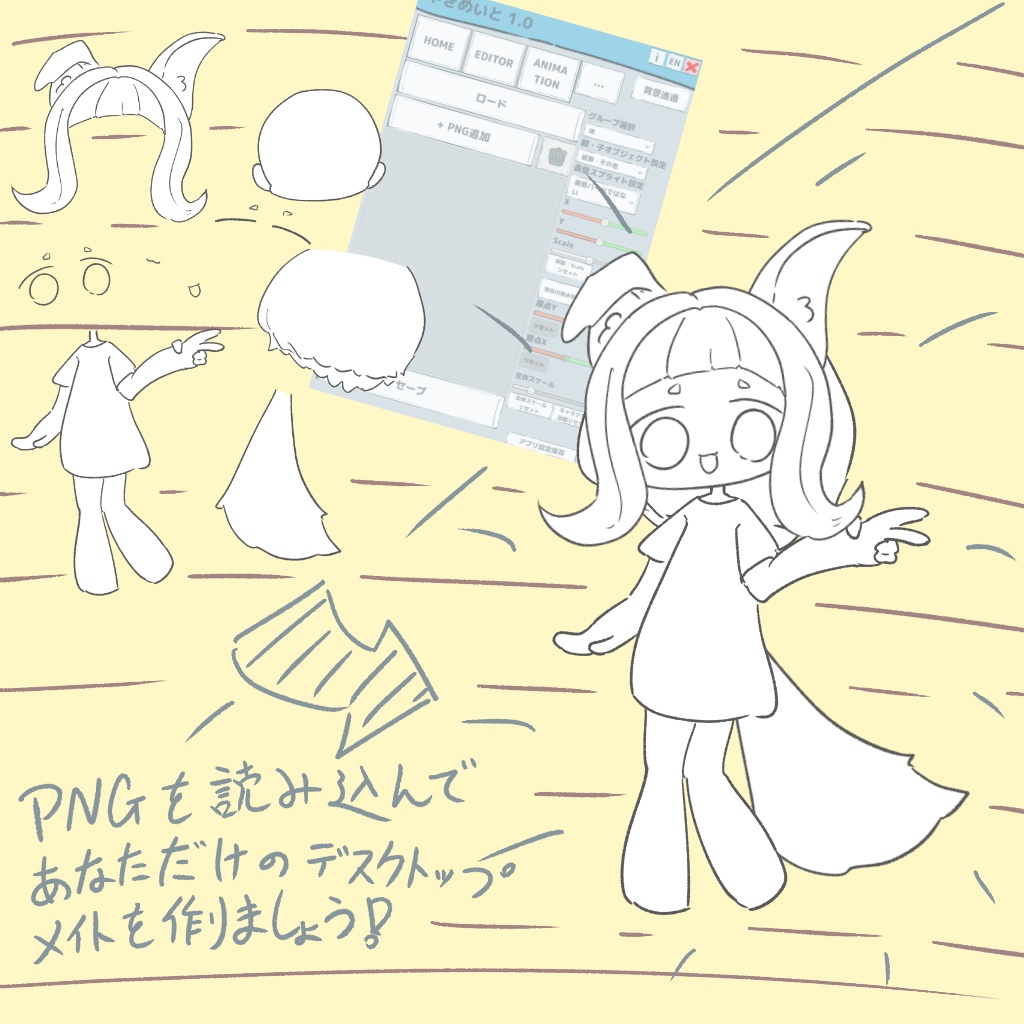
このアプリは何のアプリですか? やぎめいとは「製作者のヤギが自分の絵を軽量に動かして愛でたいな」と思って開発したアプリです。 最大30枚のPNGを読み込んで、グループ別さらにパーツ別で簡単なアニメーションを設定できます。最低5枚のPNGで瞬きと口パクのアニメーション、さらに差分を追加したら細かい表情変化とかができようになる柔軟な設計です。 こういう方を想定しています ・キャラクターをデスクトップに表示して愛でてたい方 ・配信とかで立ち絵をマイクに反応に応じておもしろおかしく動かした方 ・作業配信とか特定のゲームの時、軽く動かせる立ち絵が欲しい方 デスクトップ上であなたの子を召喚して愛でましょう!!
【アプリの機能】
・キャラクターのみ最前面表示もしくはウインドウの枠付きの状態での表示からを選べます。両方とも配信ソフトでのキャプチャーに対応してます。(OBSでウインドウの枠を消している状態でのキャプチャーでは”透過を許可”にチェックを入れてください。) ・最大30枚の縦横4096*4096ピクセルのPNGを読み込めます。(推奨解像度は1500*1500前後です。高解像度の画像の使用はシステムの負荷上昇につながります。) ・読み込んだPNGファイルそれぞれに、簡単な操作でどのパーツに該当して、どのように動くかを設定できます。(例えば、体に追従しつつ独自に揺れる尻尾。) ・口パク、マイクに反応した動き、瞬き、撫でとつかんで移動は対応しているそれぞれの差分を用意すれば使えます。 ・表情差分をテンキーで呼び出せます。デフォルトでは4種類、さらにプラス4種類のカスタム枠があります。 ・設定済みのキャラクターをキャラクターごとにセーブデータとして保存呼び出しが可能、表情やアニメーションなどの設定も一緒に呼び出せます。(キャラクターデータのやり取りは可能ですが、その際のトラブルは対応できかねます。信頼できる相手とのやりとりを心がけてください。)
【動作環境】
Windows10/11 64bit版 DirectX11を実行可能な環境 補足 ・マイク連動の機能を使用する場合は、マイクが必要です。 ・大きなPNG画像や多数のパーツを使用すると、メモリ使用量や処理負荷が増加します。 ・すべての環境での動作を保証するものではありません。
【基本操作】
ESCキー:設定メニューのオン・オフ(メニューの表示時、一部のアニメーションの再生が停止します。) F1キー:ウインドウの表示のオン・オフ (メニュー表示時) 方向キー:スプライト全体の移動。 (対応スプライト設定時かつテンキー操作オンの時) 1:表情リセット 2:笑顔 3:怒り 4:悲しみ 5:おどろき 6~7:カスタム表情 (ウインドウ非表示時) 左クリック:つかんで移動
【初回設定の流れ】
必要なもの:動かしたい絵(パーツ分け済み)、もしくはキャラクターデータ ・キャラクターデータお持ちの場合: ロードボタンを押して、キャラクターデータがあるフォルダから選択したらすぐに使えます。 ・分割済みの絵を動かしたい場合: 1.”EDITOR”の”+ PNG追加”を押して、やぎめいとにPNGをインポートします。インポートされたPNGは表示され、上下矢印ボタン、もしくはドラッグで前後の表示順番を調整できます。 2.インポートしたPNGをパーツとしての定義をします。 ”EDITORの”右側の 【グループ選択】で「どこのグループと一緒に動くか」 【親・子オブジェクト設定】で「そのグループでは親オブジェクトか、追従する子オブジェクトか」 【表情スプライト設定】で「表情パーツなのか、表情パーツだった場合どの表情なのか」 を定義をします。 (例えば、頭と体が分かれている立ち絵だった場合。頭の部分は「頭のグループ」で、自身が親オブジェクトになります。表情にはなりませんので、表情パーツではないと設定しましょう) 3.パーツの原点を設定します。 原点はグループもしくはパーツが動くとき、どこを基準にするかの設定です。(初期では中心点にあります。) ”グループと動く”と設定されているパーツは、「グループ選択」と「親・子オブジェクト設定」が一致しているパーツの原点を参照します。 ”独自の原点を持つ”と設定しているパーツは、グループの動きに従いつつ、さらに独自の原点で動きます。(例えば、尻尾のような、体に追従するが、揺らしたいときに使います。) 4.アニメーションの設定(使いたい項目のみ設定します) ”ANIMATION”でキャラクターにつけるアニメーションを設定します。 各アニメーションの設定について ・つかみ:つかみ用のPNGを設定しているとき、キャラクターの体と設定している親オブジェクトの範囲で左クリックしたら、つかみ用のPNGに切り替わる設定 ・なでなで:頭として定義しているPNGがある場合で、頭の親オブジェクトのエリアで左クリックをすると、頭を傾げるアニメーションが出る設定 ・つよつよなで::頭として定義しているPNGがある場合で、頭の親オブジェクトのエリアで右クリックをすると反応するアニメーションが出る設定 ・クリック判定リセット:頭と体のクリック判定エリアをリセットします。 ・テンキー表情変更:対応した表情パーツを設定しているとき、テンキーの1~8で表情の制御ができます。”バックグラウンドでも判定を許可”をオンにした場合、ほかのウインドウを使用中テンキーの操作を許可します。 ・呼吸アニメーション オン:スプライト全体が一定の周期で上下します。上下する幅とスピードを下で設定できます。 ・発話モーション:”HOME”で音声入力を指定したとき、どのように動くかを設定します。 ・まばたき オン:目の開きと閉じのパーツを設定した場合、一定周期で瞬きをするか設定できます。”通常”は1回、”2回まばたき”ではパチパチと瞬きをします。 5.キャラクターデータとして書き出します。 ”EDITOR”もしくは”ANIMATION”のセーブボタンでキャラクターデータとして保存できます。(次回の起動では最後混みこんだキャラクターデータを自動で読み込みます。) 【詳しいセットアップの例は下のドキュメントを参照してください】 (準備中) 補足: 読み込んだPNGの解像度に応じて、アプリ内で自動補正するため、キャラクターの部分は同じキャンバスから同じ解像度で書き出すことを推奨します。
【How to Use】
Esc: Open / Close Control Panel. F1: Enable / Disable background window. (While control panel is open) Arrow key: Move Character sprite (While "Use Numpad" is enabled and emote sprites is assigned) 1: reset 2: happy 3: Angry 4: Sad 5: Surprised 6~8: Custom emote (While window is disabled) Right click: Move character
【How to setup of the first time】
If You Already Have Character Data Click the Load button and select your character data file from its folder. Your character will be ready to use immediately! If You Want to Animate Your Own Character Illustration 1. Import Your PNG Parts Go to the EDITOR tab and click "+ Add PNG" to import your PNG files into YagiMate. Imported PNGs will appear on the screen. You can change their front-to-back layering order using the Up/Down arrow buttons or by dragging them in the parts list. 2. Assign Roles to Your Imported Parts In the right-hand section of the EDITOR tab, configure the following settings for each imported PNG: Group Select: Determines which group the part moves together with. Part Type: Determines whether the part is the parent object of its group or a child object that follows the parent. Define facial: Determines whether the part is used for facial expressions and, if so, which expression it represents. 3. Set the object origin A object origin determines the position around which a group or individual part moves or rotates. By default, the object origin is located at the center. Use Group Origin: The part uses the object origin of the parent object matching its Group Selection and Part Type Settings. Use Individual origin: The part follows its group's movements while also being able to move or rotate around its own oriign. 4. Configure Animations (Optional) Open the ANIMATION tab and configure only the animation features you want to use. Available Animation Settings: Grab: If a Grab PNG has been assigned, left-clicking within the area of the body PNG designated as the parent object will switch the character's appearance to the Grab PNG. Pet: If a PNG is assigned as the head's parent object, left-clicking within its area will trigger a head-tilting animation. Right Click Animation If a PNG is assigned as the head's parent object, right-clicking within its area will trigger a reaction animation. Recalculate Hit Area: Recalculates the clickable areas for the head and body. Use Numpad: If the corresponding facial expression sprites have been assigned, you can switch expressions using the 1–8 keys on the numeric keypad. Enabling "React While at Background" lets you use these shortcuts even while another window is active. Breathing: Makes the entire character sprite move up and down at regular intervals. You can adjust the movement amplitude and speed using the settings below. Talking Motion: Determines how the character moves in response to audio input selected in the HOME tab. Auto Blink: If you have assigned both open-eye and closed-eye sprites, you can enable automatic blinking at regular intervals. Normal performs a single blink, while Double Blink performs two quick blinks. 5. Save Your Character Data You can save your character configuration as a YagiMate character data file (.chara) using the Save button in the EDITOR or ANIMATION tab. The next time you launch YagiMate, it will automatically load the last character data file you used.
【利用規約】
・本ソフトウェアの利用、保存データの破損・消失、第三者とのデータ交換などによって生じた損害について、開発者は、適用法令により認められる範囲で責任を負わないものとします。ただし、法令上免除または制限することが認められない責任については、この限りではありません。 ・本ソフトウェアの再配布と自作発言を禁止します。 ・個人における商業・非商用での利用を許可します。クレジット表記は不要ですが、していただけると製作者はとても喜びます。 ・企業における商用利用はお問い合わせください。 ・意図的にアプリを停止させたり、他人の環境へ悪影響を与えたりする目的で、異常なキャラクターデータ(.chara)を作成・配布する行為を禁止します。 ・キャラクターデータの共有の際、配布者と利用者が各自に必要な許可を確認してください。 ・.charaや元PNGの破損・消失に備えて、重要なファイルのバックアップを推奨します。YagiMateがバックアップや復旧を保証。 ・不具合等の連絡はBoothのメッセージ機能を通してお知らせください。
【Terms of Use】
Disclaimer of Liability To the extent permitted by applicable law, the developer shall not be held liable for any damages arising from the use of this software, corruption or loss of saved data, or the exchange of data with third parties. This does not apply to any liability that cannot be excluded or limited under applicable law. Redistribution and Ownership Redistribution of this software and falsely claiming it as your own creation are prohibited. Personal Use Both commercial and non-commercial use by individuals is permitted. Credit attribution is not required, but it would make the developer very happy if you choose to give credit! Corporate Commercial Use Companies and other organizations wishing to use this software for commercial purposes must contact the developer for permission. Malicious Character Data Creating or distributing malicious or intentionally malformed character data (.chara) for the purpose of crashing the application or negatively affecting other users' systems is strictly prohibited. Sharing Character Data When sharing character data (.chara), both the distributor and the recipient are responsible for ensuring that they have obtained any necessary permissions from the respective rights holders. Data Backup and Recovery Users are strongly encouraged to back up important files to prevent the loss or corruption of .chara files and original PNG images. YagiMate does not guarantee data backup or recovery.
【更新履歴】
2026.11.24 リリース
【えくすとら】
Xで #やぎめいと とつけて投稿していただけると、ヤギは大変喜びます。